
Check publishing status in Content Manager
Filter by account, date range, and status to review published, scheduled, draft, and failed content in calendar or list view.
Open this feature1. Choose an account and view
Open SNS operations → ‘콘텐츠 관리’ (Content Manager) from the left menu. In the account selector at the upper right, choose ‘전체 계정’ (All accounts) or one connected account. Narrow the account first when similar posts appear on the same date.
‘캘린더’ (Calendar) is best for dates and spacing, while ‘리스트’ (List) is best for finding posts by period and status. Switch with the center toggle; Mirr may remember the last view in this browser.
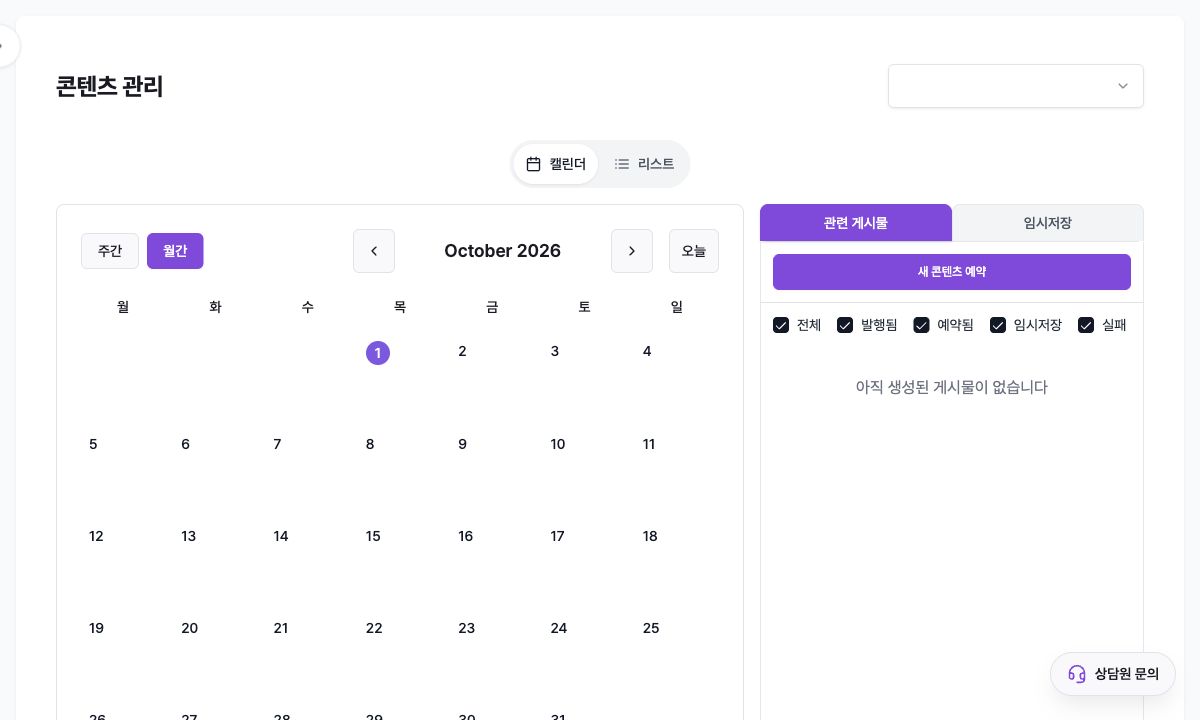
2. Review content by date in Calendar
Choose ‘주간’ (Week) or ‘월간’ (Month), move with the left and right arrows, and use ‘오늘’ (Today) to return to the current period. Selecting content on a date opens its detail editor.
Under ‘관련 게시물’ (Related posts), combine the ‘전체’ (All), ‘발행됨’ (Published), ‘예약됨’ (Scheduled), ‘임시저장’ (Draft), and ‘실패’ (Failed) checkboxes. If you clear every status, Mirr keeps at least one selected.
The ‘임시저장’ (Draft) tab collects drafts whose publishing flow is not final. ‘새 콘텐츠 예약’ (Schedule new content) opens the new-post composer.
3. Find content by period and status in List
Switch to ‘리스트’ (List) to see a date-range button and the All, Published, Scheduled, Draft, and Failed tabs. ‘발행됨’ (Published) is selected initially, and the date button changes the start and end dates.
Posts with a scheduled time are sorted by that time; other posts use creation time. Newest items appear first, with five items per page when pagination is needed.
‘콘텐츠가 없습니다’ (No content) means the current date, account, and status combination has no result. Broaden to All status and All accounts, then extend the date range.
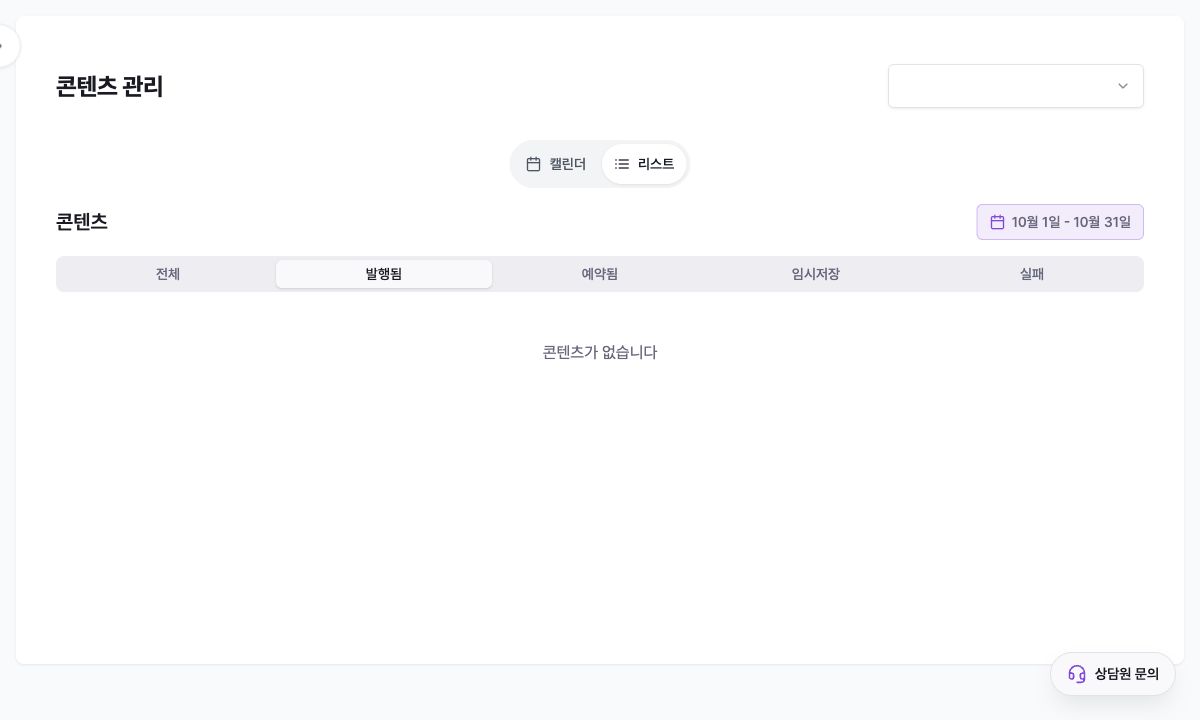
4. Interpret each status correctly
‘발행됨’ (Published) means Mirr stored the post as successfully published. It does not always prove the latest external-platform state after deletion, hiding, or restrictions, so verify critical posts on the platform too.
‘예약됨’ (Scheduled) has a future publishing time, while ‘임시저장’ (Draft) has not been scheduled or published. Open the detail to verify account, copy, media, and time.
‘실패’ (Failed) means the publishing attempt did not complete. Open it to review the saved content and error guidance before editing or rescheduling.
Before retrying a failure, check the destination platform for an actual post. If anything was published externally, an immediate retry can create a duplicate.
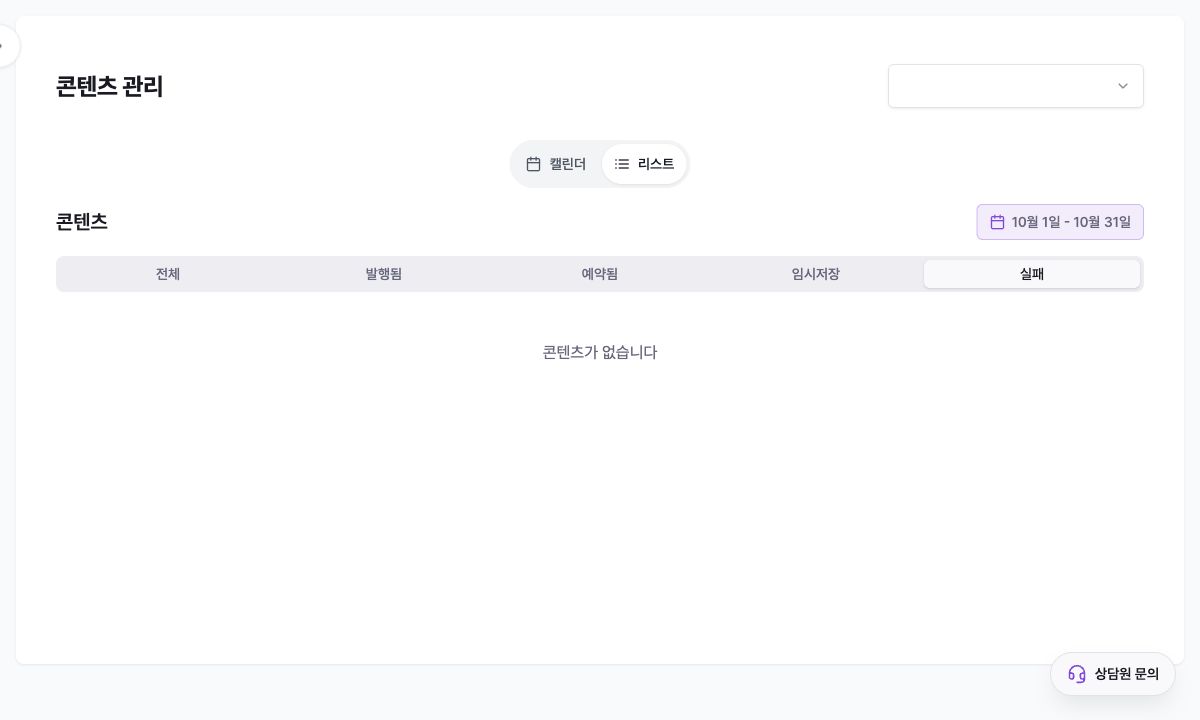
5. Open and review a post
Selecting a calendar card or list item opens the post detail editor. Review the account, copy, attached images or video, optional comments or poll, status, and time together. ‘동기화됨’ (Synced) identifies an external post imported into Mirr.
When changing a scheduled post, verify the account and scheduled time along with the text. For failures, inspect the error reason and actual external-platform result before taking action to avoid duplicates.
Editing, rescheduling, and deletion can affect the real publishing flow. Recheck the target account and current status before saving.
Troubleshooting
If a post is missing, check the account, calendar month or list range, and status filter. Broaden to All accounts and All status first.
If a calendar date looks wrong, check the workspace time zone and scheduled time. Posts near midnight can appear on a different day under the configured time zone.
If a Scheduled post is absent from the platform, it may not have reached its time yet. If the time has passed, check Failed and the detail error, then verify the platform itself.
For a Failed item, review the error, connected-account health, copy and media limits, and external publishing result before editing or rescheduling. Do not retry immediately if any portion already appeared externally.